
Zero to SaaS 01: Let's FINALLY understand Docker
Hey folks! Hope you all got well into 2026!
I definitely did, along with great amibitions for this blog and my other online channels.
This'll be one of my first series of 2026.
Last year around this time, I had built a showcase for a software in Uni.
It's techstack was garbage and it would've never worked, yet the idea for it is.. rather cool in my opinion. I will unveil more about it bit by bit.
I’m bringing that idea back from the dead. This time, I’m building it for real, production-ready, secure, and scalable, together with a good friend of mine.
I’ll be documenting every single learning of this journey right here.
We're starting from scratch. And today's first topic's going to be: Docker (already scared?). Alright, let's get started.
What even IS Docker?
These self-enclosed packages are called containers; they include everything that the software running within needs to function, nothing else is needed.
Such execution environments can range from tiny blobs with a few files to fully blown Linux distributions (in which case, one of these included packages for the container to use could be apt to manage dependencies).
You don't need to allocate ANYTHING
In virtualization, you'd need to predefine how much RAM, space etc. a VM has, but not here. Docker takes what it needs on the run!
Small Excursus: How Docker runs
Docker runs as a service, how this occurs depends on the host OS:
- Linux: Runs as an OS daemon service (such as a
systemdunit file), which is then sent commands via thedockeranddocker-composeclients. - macOS: A Xen Hypervisor Virtual Machine runs the Docker service, and a UI and CLI client connects to it.
- Windows: A Virtual Machine (called MobyVM) is run, with the UI and CLI client connecting to it, or via WSL.
Terminology: Understanding Docker names
Layers/ Image Layers
A layer is a change on an image (to which we'll come to in a second), or an intermediate image as the layer at the top can represent the current overall status.
Every command, some of which you might've already encountered, FROM, RUN, COPY and so on, all these written in the Dockerfile cause the previous image to change, thus creating a new layer.
You can think of it as staging changes when you're using git: You add a file's change, then another one, then another one...
Consider the following Dockerfile (inspired from this great repo):
FROM rails:onbuild
ENV RAILS_ENV production
ENTRYPOINT ["bundle", "exec", "puma"]
First, we choose a starting image: rails:onbuild, which in turn has many layers. We add another layer on top of our starting image, setting the environment variable RAILS_ENV with the ENV command. Then, we tell docker to run bundle exec puma (which boots up the rails server). That's another layer.
The concept of layers comes in handy at the time of building images.
Because layers are intermediate images, if you make a change to your Dockerfile, docker will rebuild only the layer that was changed and the ones after that. This is called layer caching.
Images
An image is the self-contained object representing the file system, comprised of Docker layers.
In an image, there are therefore $x$ layers, with $1 < x < n, n \in \mathbb{N}$.
Images are created from Dockerfile recipes, just as we saw in the layers example above.
Docker Images vs Dockerfiles
This analogy might be crude, but i think it conveys the point:
- The Dockerfile is the set of instructions, like a class in Object-Oriented Programming is.
- The resulting image is the product of said instructions, the object.
Container
When an image is selected to run, a new container is created that uses the layers from the Docker image as the base filesystem and then runs any command that is given on it.
The image acts as the template for the container and the container never alters the image.
What if the container creates new/ updates files?
The Copy-on-Write (CoW) Strategy
To understand how Docker stays so efficient, you have to look at the Copy-on-Write mechanism. When you start a container, Docker doesn't copy the entire image. Instead, it adds a thin writable layer on top of the stack of read-only image layers.
Everything that happens during the container's runtime is recorded in this top layer:
- Creating new files: These go directly into the writable layer.
- Modifying existing files: Docker performs a "copy-up." It copies the file from the read-only image layer to the writable layer first, then applies your changes there. The original file remains untouched in the image below.
- Deleting files: Docker creates a "Whiteout" file in the writable layer. This acts as a mask, telling the system to act as if the file doesn't exist, even though the original is still physically present in the read-only layer below.
The Golden Rule: Container layers only live as long as the container itself. Once you docker rm that container, the writable layer, and all your changes, are gone.Persistent Data: Volumes
Since container layers are ephemeral, we need a way to keep data like databases or user uploads alive. This is where Volumes come in. Think of a volume as a "bridge" that bypasses the writable container layer and writes directly to the host’s file system.
There are two primary ways to handle this:
- Bind Mounts: You point to a specific, existing directory on your host machine (like
/home/user/config) and map it to a path in the container. This is great for development where you want to sync code changes instantly. - Named Volumes: You let Docker manage the storage location. You give it a name (e.g.,
db_data), and Docker handles the "where" on the host disk. This is the cleaner, more "production-ready" approach.
Networking: Breaking the Isolation
By default, containers are isolated. If your web server container needs to talk to your database container, they need a Docker Network.
Most of the time, you'll use a Bridge Network. It acts like a private virtual switch; containers on the same bridge can find each other by their container names. If you need a container to appear as if it’s running directly on your host’s network without any isolation, you’d use the Host driver.
Any container that needs to send or receive data from the internet or other containers requires a properly configured network interface.
Registries and Repositories
Finally, how do we share these images? We use Registries.
A Registry (like Docker Hub or GitHub Packages) is the service that hosts the data. Inside a registry, you have Repositories, which are collections of different versions of the same image, distinguished by Tags (e.g., postgres:14 vs postgres:latest).
The lifecycle is simple:
- Build your image from a Dockerfile.
- Push it to a remote Registry.
- Pull it down onto any other machine in the world to run your software exactly as it was built.
This is a crucial pin-point for how we want to use Docker in our project.
The Docker CLI
Now that you understand the theory of layers and volumes, here is how you actually talk to the Docker daemon. Think of this as your "Day 1" survival kit:
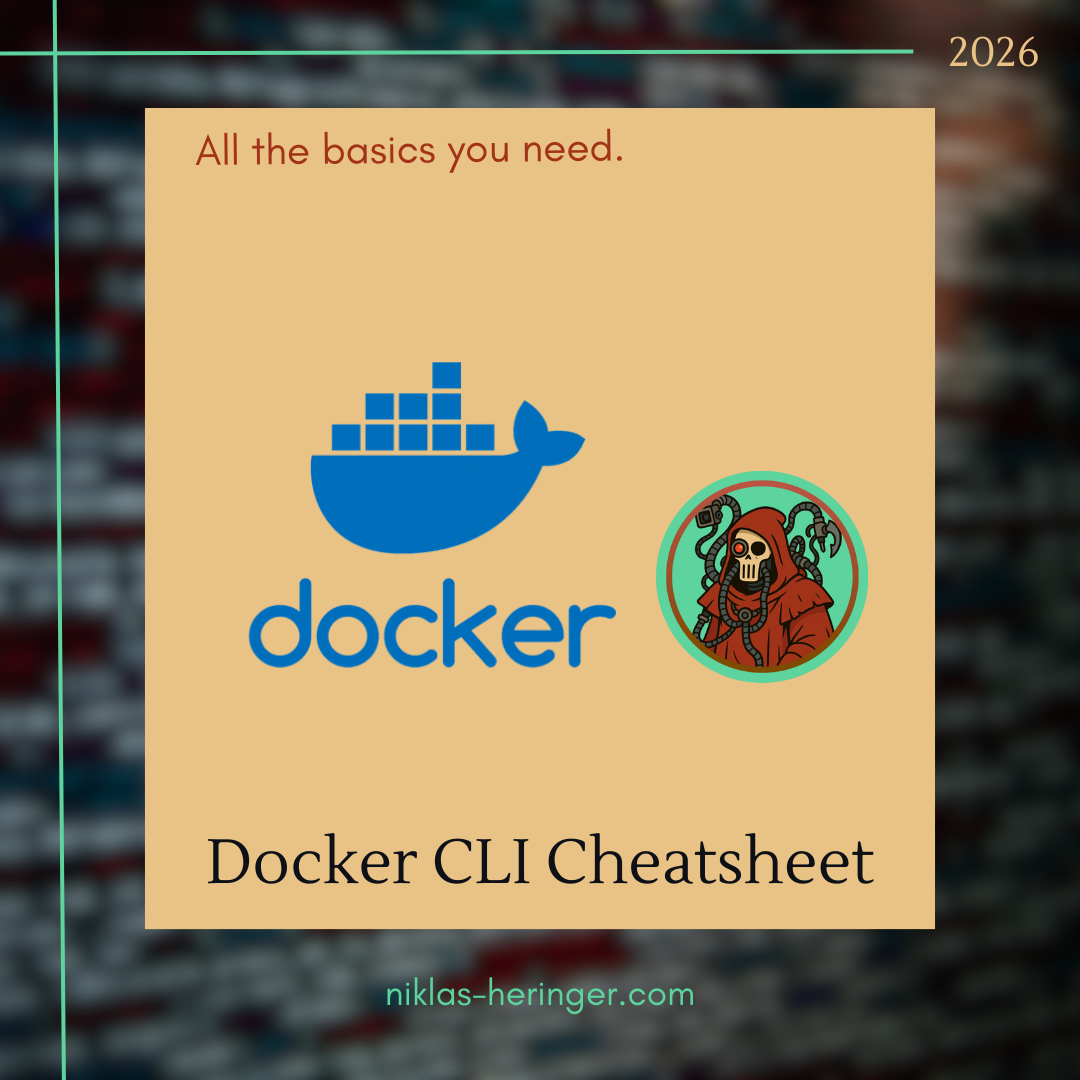
Docker CLI Cheatsheet
Get my Docker Core CLI Cheatsheet for free. One page, all the essential commands, no filler.
To round out the "Basics" of this first part, you must move from manual CLI commands to Orchestration.
Running one container with a long docker run command is fine for testing, but real apps have multiple moving parts (a frontend, a backend, and a database). You don't want to type out 50 arguments every time you start your stack.
The next logical stage is Docker Compose.
Docker Compose (Infrastructure as Code)
Docker Compose is a tool for defining and running multi-container applications. Instead of manual commands, you define your entire stack in a single file: docker-compose.yml.
The docker-compose.yml Structure
This file uses YAML syntax to define services, networks, and volumes.
version: '3.8'
services:
  web:
    build: .          # Tells Docker to use the Dockerfile in the current dir
    ports:
      - "8080:80"     # Map Host 8080 to Container 80
    volumes:
      - .:/code       # Bind mount for live development
    networks:
      - backend

  db:
    image: postgres:15
    environment:
      POSTGRES_PASSWORD: example_password
    volumes:
      - db_data:/var/lib/postgresql/data
    networks:
      - backend

volumes:
  db_data:            # Named volume for persistence

networks:
  backend:            # Isolated network for the two containers
The "Up & Down" Workflow
Compose simplifies the entire lifecycle into two main commands:
docker-compose up -d- Reads the YAML file.
- Builds the images.
- Creates the networks and volumes.
- Starts all containers in the correct order.
docker-compose down- Stops all containers.
- Removes the containers and the internal networks.
- Note: It keeps your volumes intact so your data isn't lost.
Why this is a Game Changer
- Version Control: Your infrastructure setup is now a file in your Git repo.
- One Command Setup: A new developer joins your project? They run
docker-compose upand the entire environment is ready. - Service Discovery: Inside the
backendnetwork, thewebcontainer can reach the database simply by using the hostnamedb. No IP addresses required.
What’s Next: From Theory to Reality
We’ve laid the groundwork. You know how Docker thinks, how it stores data, and how Compose orchestrates the chaos. But theory only gets us so far.
In the next post of this series, we’re getting our hands dirty. We will:
- Define the Tech Stack: I'll finally unveil the core components of this "revived" SaaS.
- The First Dockerfile: We will write a production-ready Dockerfile (no more "garbage tech stacks").
- Local Dev Environment: Setting up a hot-reloading development environment using the Docker Compose skills we just covered.
The ambitious goal for 2026 is simple: Build in public, fail fast, and document the "why" behind every architectural decision.
See you in the next one. We’re just getting started. 🚀
No spam, no sharing to third party. Only you and me.
Member discussion